Body
When to Use the PAB
- Phishing attempts: Emails designed to steal credentials or sensitive information.
- Unknown threats: Any email that seems suspicious, but you're unsure of the specific threat.
When not to Use the PAB
- Spam: Spam messages are annoying, but generally not malicious. They are best defined as "unwanted messages", but are necessarily a threat. There are two ways to treat spam:
- If the message is something you subscribed to but no longer wish to receive, you may be able to "unsubscribe" from the service. There is often a link at the bottom of the email for this. Only click the "unsubscribe" link in messages that you subscribed to. If it is something you did not request, use option 2 instead.
- In your Outlook inbox, right-click on the spam message and choose Block > Block Sender. Messages from senders you block will be sent to your Junk folder and will no longer arrive in our inbox.
Reporting Phishing in Outlook on PC
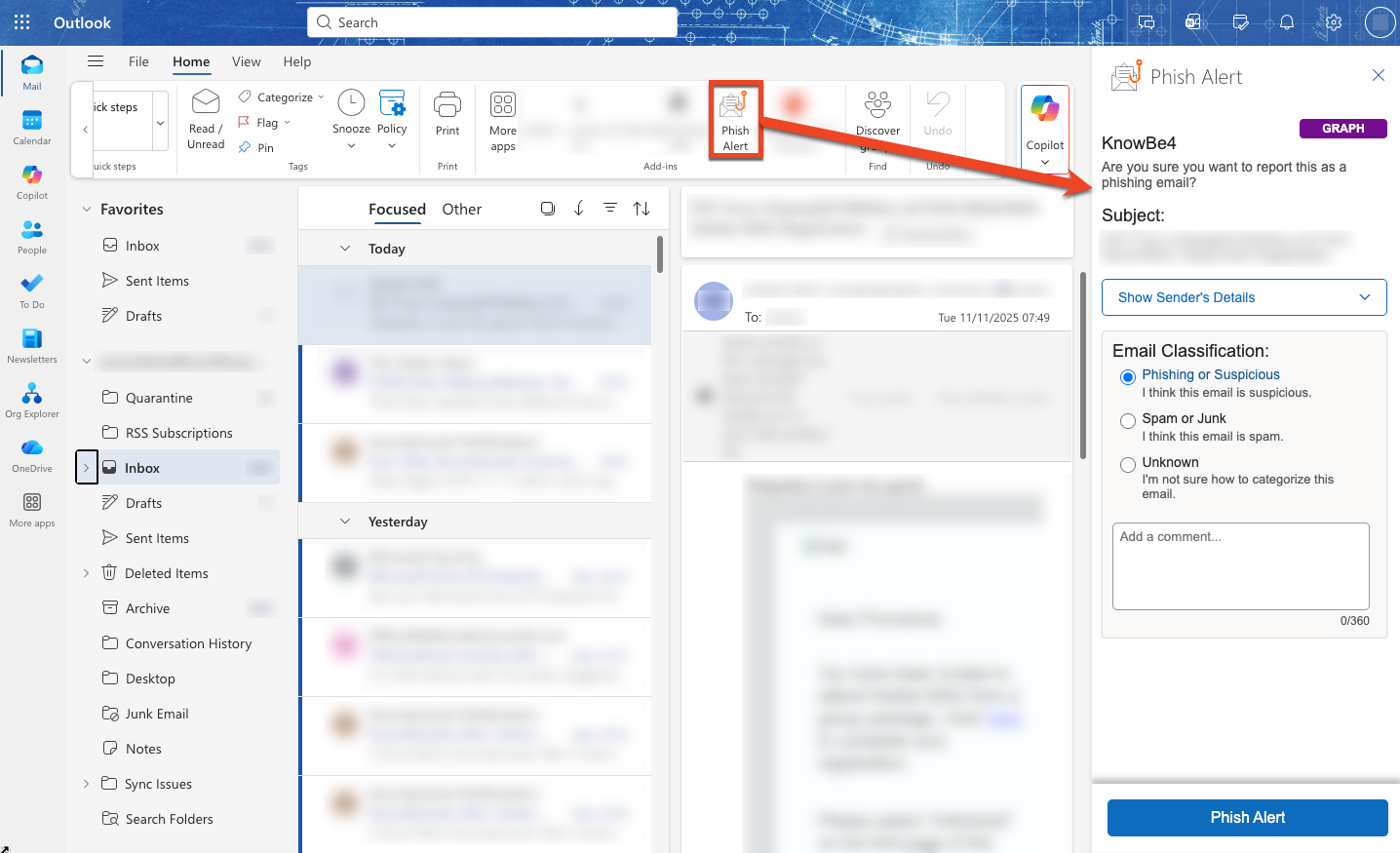
1. Select or open the email that you would like to report.
2. Select the Phish Alert button at the top of the page.
3. In the pop-up window that opens, select the Phish Alert button to report the email.


Reporting Phishing in Outlook on Mobile
1. Select or open the email that you would like to report.
2. Click on the (...) at the top right area.
3. Select the Phish Alert button to report the email.
4. Click the Phish Alert button to report the message.
Click the following link for more details: How Do I Use the Phish Alert Button